Read the Symptom, Pick the Path
Stop random fixes by mapping WordPress symptoms to the right category and validating your diagnosis with tools.

What you’ll learn
By the end of this lesson, you will:
- ✓Recognize the most common categories of WordPress issues.
- ✓Match specific symptoms (error messages, downtime, slowness) to likely causes.
- ✓Use WordPress tools to confirm and classify the issue before attempting fixes.

Why categorization matters
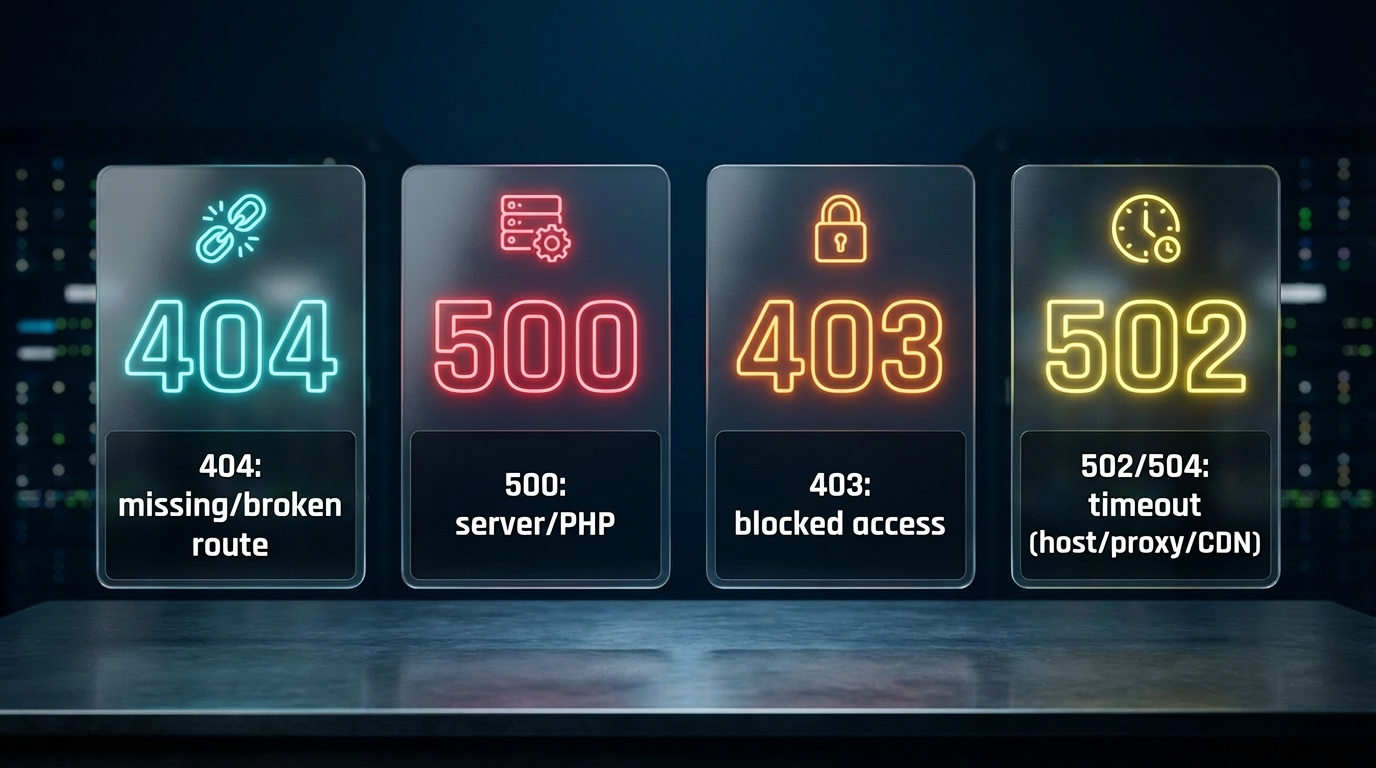
Troubleshooting becomes much faster when you can correctly identify what kind of problem you’re facing. For example, a 500 error points to server or PHP problems, while a 404 is usually about missing or misrouted content. Instead of trying random fixes, you work from the right category of issue.
The main categories of WordPress issues


Measure slowness first, then troubleshoot the cause.


A practical sequence
When you spot a symptom:
1
Check availability: Determine if the site is down for everyone or just you.
2
Look at the error message: Identify specific codes like 404, 500, or database errors.
3
Cross-check Site Health: Use internal tools and debug logs to confirm symptoms.
4
Assign to a category: Match the symptom to one of the six main diagnostic paths.
5
Move forward with the right fix path.
References
- → WordPress Site Health: Status & Info (Tools → Site Health).
- → WordPress debugging constants (WP_DEBUG, WP_DEBUG_LOG).
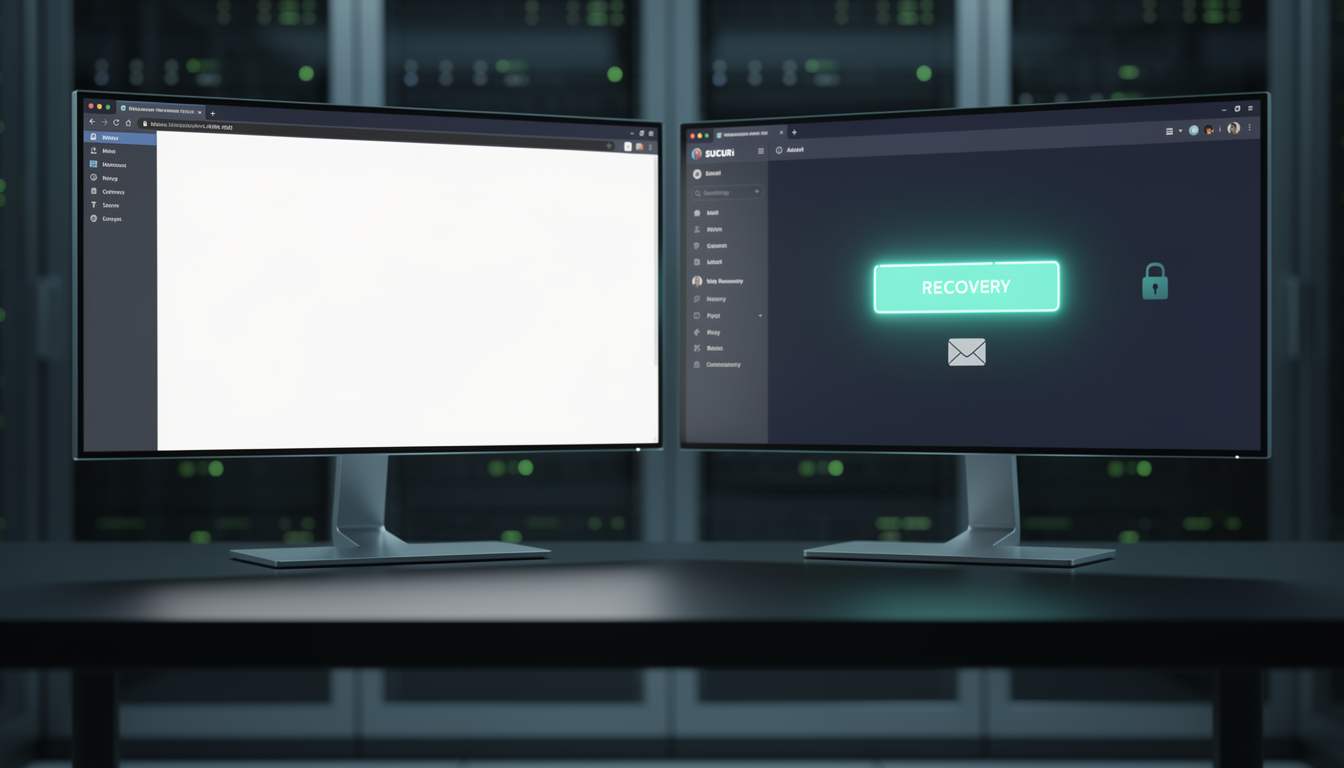
- → Recovery Mode fatal error protection.
- → Database repair constant (WP_ALLOW_REPAIR).